
An authenticator app is the most secure way to complete the second step of sign-in. The app lives on your phone and generates a fresh 6-digit code every 30 seconds. You enter that code when First Connect asks for it.
Before you start
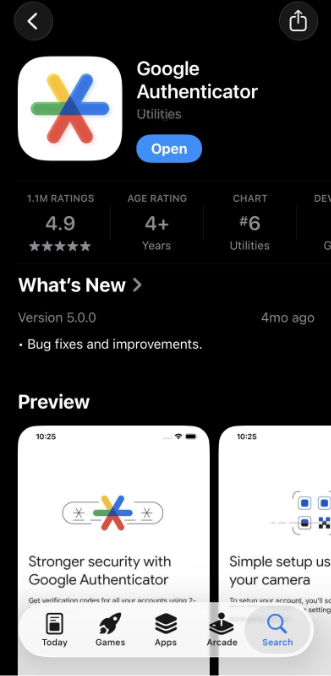
Install one of these free apps on your phone (any of them works):
- Google Authenticator — iPhone / Android
- Microsoft Authenticator — iPhone / Android
- Authy — Download
- 1Password — Download
Setup steps
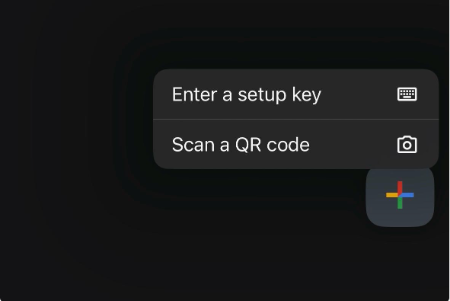
Setting up on your phone? Instead of a QR code, you'll see a setup key (a long string of letters and numbers). In your authenticator app, choose "Enter a setup key" instead of "Scan QR code," then copy the key from First Connect and paste it in.
- When First Connect prompts you to set up your second factor, choose Authenticator app.
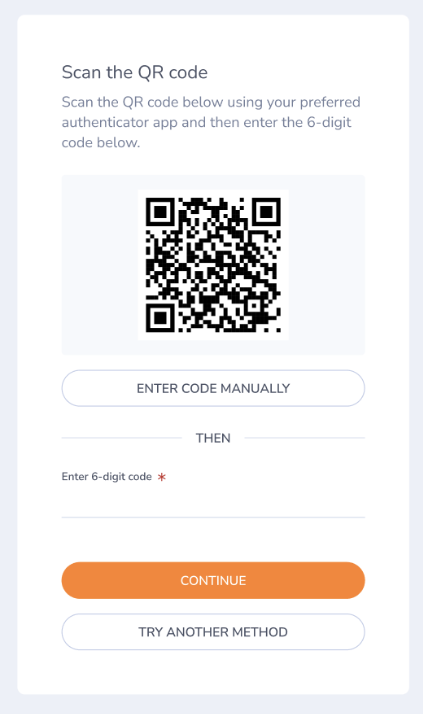
- A QR code appears on your screen.
- Open the authenticator app on your phone and tap the + (or Add account) button.
- Choose Scan QR code and point your phone's camera at the QR code on your computer.
- The app adds a new entry called First Connect with a 6-digit code that changes every 30 seconds.
- Back in First Connect, type that 6-digit code into the box and click Verify.
- Save your recovery code — this is your backup if you ever lose your phone. Store it in a password manager or somewhere safe.
Example: setting up Google Authenticator
Sarah just got the prompt to set up her second factor. She picks Authenticator app, and a QR code appears on her laptop.
On her iPhone, she opens Google Authenticator, taps the + in the bottom right, and picks Scan a QR code. She holds her phone up to her laptop screen — the app instantly adds a new entry showing First Connect — 482 193.
She types 482193 into the box on her laptop and clicks Verify. First Connect shows her a recovery code: K4WJ-9XQM-2RTV-8PNL. She copies it into her password manager and clicks I've saved my recovery code.
Done. The next time Sarah signs in, she'll enter her email, password, and the current 6-digit code from Google Authenticator.
From now on, when you sign in
- Enter your email and password.
- Open your authenticator app and find the First Connect entry.
- Type the current 6-digit code into First Connect.
If the Authenticator code is about to expire, wait for the next one and enter that.
Tips
- Save your recovery code right away. It's only shown once.
- Consider setting up a second factor as backup (like text message). See the related article on adding methods.
- If you get a new phone, update your MFA method before getting rid of the old one if you can.
- If codes still aren't arriving, contact support.
Multi-Factor Authentication FAQ
|
Question |
Answer |
|
What's an authenticator app? |
A free app you install on your phone that generates a 6-digit code every 30 seconds. Common options: Google Authenticator, Authy, Microsoft Authenticator, or 1Password. |
|
Can I use email as my second factor? |
No. We require the 6-digit code you receive via authenticator app or text message. |
|
What's a recovery code? |
A backup code shown once when you first set up MFA. Save it somewhere safe (a password manager works well). If you ever lose your phone, you can use it to sign in. |
|
I lost my phone — how do I sign in? |
If you saved your recovery code, enter it at the MFA prompt. If not, contact support and we'll verify your identity and reset things for you. |
|
I never saved my recovery code. |
Contact support. We'll need to verify your identity before resetting your MFA. |
|
"Keep me signed in" expired before 7 days. |
The token resets if you sign out, or if you sign in from a different device. If neither applies, contact support. |
Related articles
i. Multi-Factor Authentication (MFA) Overview
ii. What is Multi-factor Authentication (MFA) and why First Connect requires it
iii. Creating a password
iv. How to set up Multi-Factor Authentication (MFA) with an authenticator app
v. How to set up Multi-Factor Authentication (MFA) with Text Message
vi. How to reset or change your password
vii. What to do if you lose access to your factor
viii. How to add or disable a Multi-Factor Authentication (MFA) method
x. What "Keep me signed in" means